
Third-party plugins
How XIV MCP controls tools that other plugins offer to your assistant.
Other plugins can offer their own tools to your assistant. Those tools run that plugin's code, so XIV MCP cannot sandbox them. Instead, it controls when they run and checks what they did. You find them in /xivmcp → Third-party plugins.
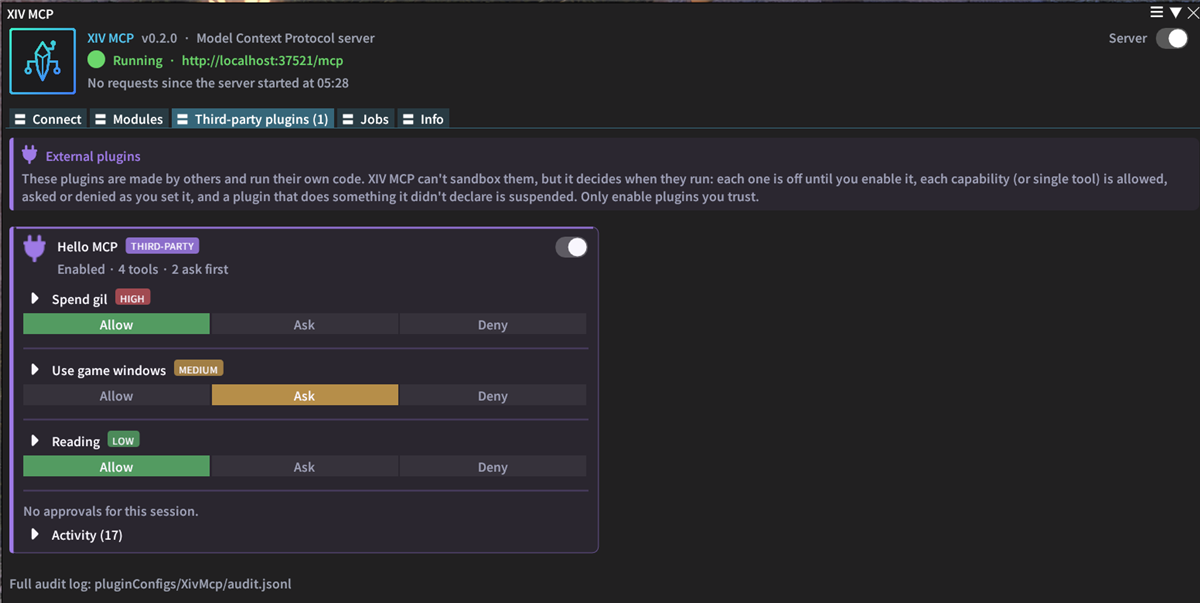
Off until you decide
When a plugin registers tools, XIV MCP shows a notification naming it and what it asks to do, with Enable, Keep disabled and Review… buttons. Clicking the notification opens the plugin's page, where the same choice is offered.
- Nothing is offered to your assistant until you enable the plugin.
- Keep disabled is remembered: you are not asked again unless the plugin's registration changes.
Where a plugin stands
Changes need consent again
If a plugin later registers a new tool or a new capability, you are asked again, for just the additions. If the plugin was enabled, its tools are paused (refused and hidden from your assistant) until you consent again. Removing tools never asks.
Capabilities you decide on
Every tool declares what it may do: use game windows, move the character, fight, move, sell or destroy items, spend gil or other currencies, send chat, log out, change settings, go online.
- For each capability you choose Allow, Ask or Deny.
- Everything except reading starts at Ask.
- Destroying items cannot be set to Allow. It is asked every time.
Each plugin card has an on/off switch, one Allow / Ask / Deny section per declared capability with its risk level, and a Reading section for tools that only read. Expand a section to set its tools on their own, as on the Modules tab. A tool that follows its sections uses the strictest of them.
Checks on what changed
Before and after every call, XIV MCP compares:
- your gil and currencies,
- your item count,
- your zone and world,
- the chat you sent,
- and whether you are still logged in.
A change the plugin did not declare flags the call. If the call was short (under two minutes), the plugin is suspended, and you get a chat message. Its card then shows what happened and a Lift suspension button. Only lift it if you know why it happened, for example because you spent gil yourself while the call ran. Longer calls are only flagged, since you or another plugin may have acted in the meantime.
Tools its jobs use
A plugin can run background jobs that use XIV MCP's own tools or other plugins' tools. It declares which ones, and its card lists them under Tools its jobs use:
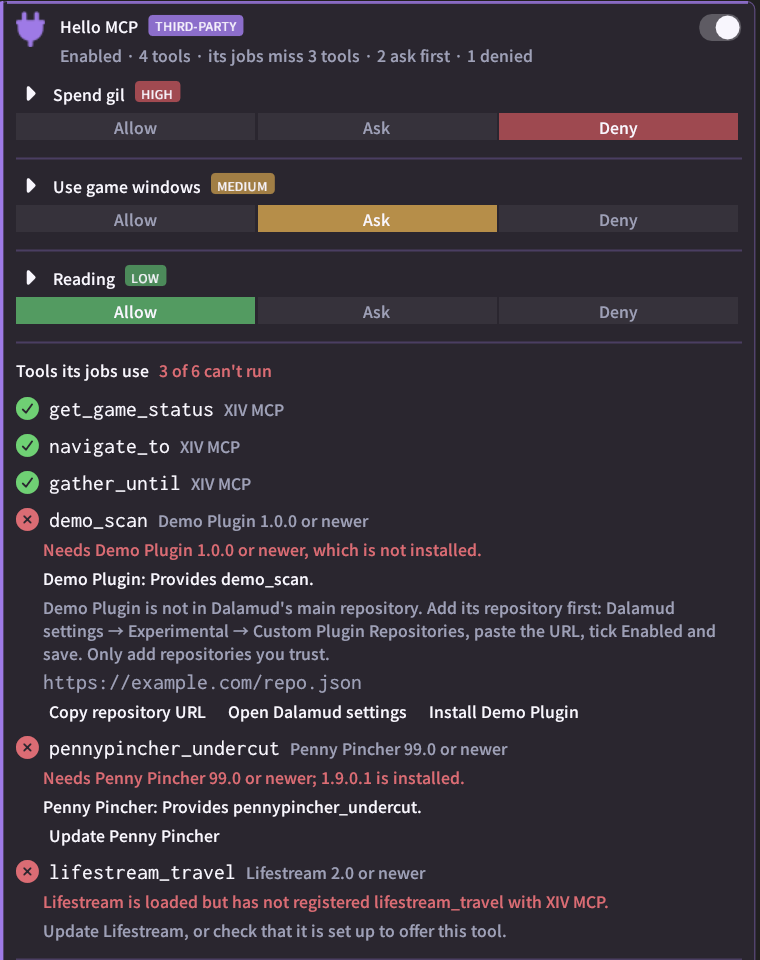
- A green check means the tool can run.
- A red error means a job with that tool will be refused. The card says why: a plugin that tool needs is not installed, is turned off, is too old, or is not enabled in XIV MCP.
- The buttons fix it. Install, Enable and Update open Dalamud's plugin installer at that plugin. A plugin outside Dalamud's main repository shows its repository URL, with Copy repository URL and Open Dalamud settings. Add the URL under Experimental → Custom Plugin Repositories, then install it.
- A grey hint names a plugin one of XIV MCP's own tools can use, such as a walking plugin for
navigate_to. The tool works without it, and asks you to do that part instead: walk to the map flag, or teleport.
XIV MCP never adds a repository by itself. Only add repositories you trust: a plugin from them can do anything on your PC.
The tab's label says when a plugin's jobs miss something.
Audit log
Every call, decision and approval is listed under the plugin, with flagged entries highlighted. The full log is in pluginConfigs/XivMcp/audit.jsonl.
Only trust what you know
Even with all of this, an enabled plugin's code does what it was written to do. Enable plugins you trust, and read the capabilities they ask for.
For plugin developers
The plugin API, with a drop-in client and an example plugin, is in the developer docs.