Connecting your AI app
Set up ChatGPT, Claude, LM Studio or another AI app with one click in /xivmcp → Connect.
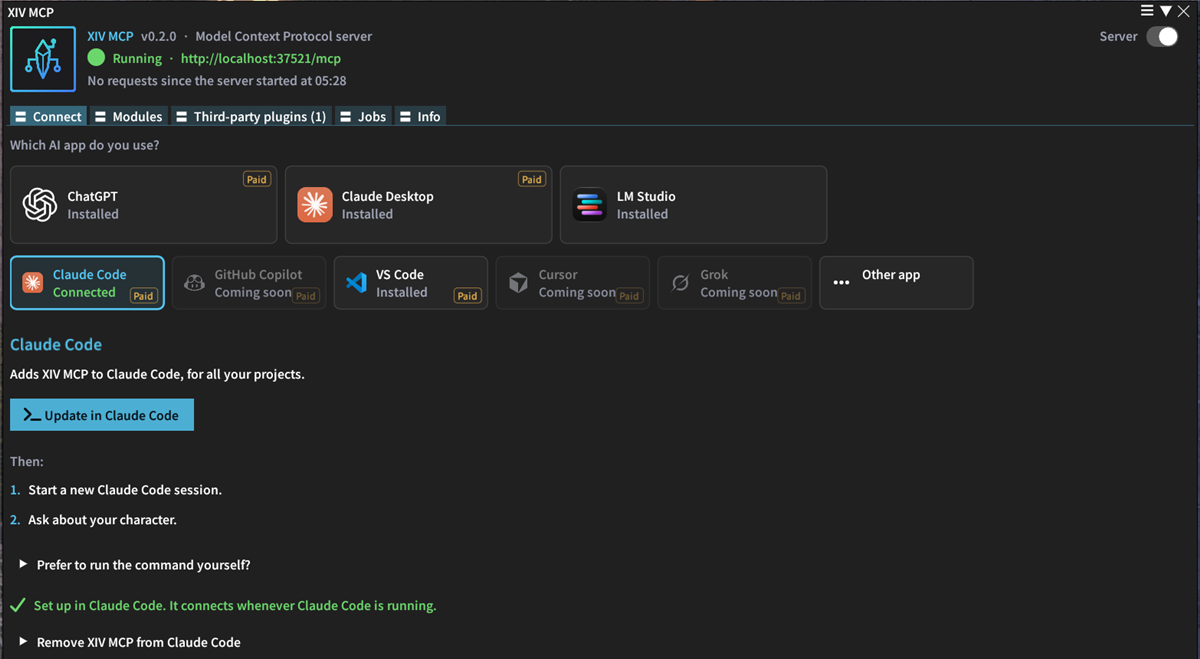
Open /xivmcp → Connect and pick your app. Most apps have a one-click button. The others have copy buttons with your access token already filled in.
How it connects
The AI model itself usually runs in the cloud and only sees what the app sends it: your messages and the tool results. With LM Studio it runs on your PC too.
Which app to pick
ChatGPT
Through Codex in the ChatGPT desktop app. Paid plan.
Claude Desktop
Installs as a Claude Desktop extension. Paid plan.
LM Studio
Runs a model on your own PC. Free.
Claude Code
In the terminal or your editor. Paid plan.
VS Code
With GitHub Copilot. Paid plan.
Other apps
Any app that reaches MCP servers over HTTP.
ChatGPT, Claude Desktop and LM Studio have large tiles; the others are below them. Every app except LM Studio is marked Paid: some have free plans, but those run out quickly when the assistant controls the game. See Costs.
What the tiles show
Each tile shows the app's own icon, read from the app installed on your PC. Under the name is its state:
| State | Meaning |
|---|---|
| Connected | XIV MCP is set up in that app. XIV MCP reads this from the app's own MCP settings. |
| Installed | The app is on your PC, but XIV MCP is not set up in it yet. |
| Not found | The app is not installed. |
Tiles marked Coming soon are greyed out: their setup has not been tested yet. Today that is Cursor, GitHub Copilot and Grok Build.
The server and the access token
The Server & access token section at the bottom of the Connect tab holds the server settings:
- The address is
http://localhost:37521/mcp. It only answers on your own PC. You can change the port there and click Apply & restart; then set up your apps again. - The access token is created once, on first start, and saved with the plugin settings. It stays the same across game restarts until you generate a new one with the arrows button next to it. After that, set up every app again.
- Require access token is on by default. Without a token, any program on your PC can use the server, so leave it on unless an app cannot send one.
- To cut off every app at once, see Removing XIV MCP from an app.
The token gives full access to everything you allowed. Do not post it, and do not commit config files that contain it.
After connecting
Start a new chat in your app and ask something simple, such as "What job am I on in Final Fantasy XIV?". The app should call get_character and answer with your current job. If it does not, see Troubleshooting.